Asana acquires StackAI — now every human-agent workflow runs in one place.Learn more
Project tracker template
Track multiple projects in one place with a reusable template that helps you assign owners, set deadlines, monitor progress, and coordinate teams.
Create your templateSign up to create your own template.
INTEGRATED FEATURES
Recommended apps



Summary
Managing multiple projects can be challenging even for the most organized project managers. A project tracker template provides a consistent structure for monitoring projects across teams. This article explains what a project tracking template is, its importance, available types, essential components, and how to set one up.
What is a project tracking template?
A project tracker template is a reusable layout that helps you organize, schedule, and manage multiple projects in one place by assigning owners, setting deadlines, and tracking progress. You can use it to prioritize work, prevent missed steps, and keep everyone updated as each project develops. Templates like these are also helpful with portfolio management.
Read: Use this assignment tracker template to track tasks and due datesWhy use a project tracking template
The method you use to track projects directly impacts your team's organization and focus. Consistent project tracking across teams and departments increases productivity throughout the organization.
In addition, project tracking templates:
Give you a single place to view project status and identify pending deliverables.
Keep your project schedule up to date with deadlines, milestones, and sequencing.
Break work into repeatable project phases so teams follow the same structure every time.
Connect your project tracker to a launch roadmap to keep planning and execution aligned.
Assign owners to project tasks and simplify handoffs across team members.
Coordinate Agile project management by connecting work to sprints when necessary.
In short, project tracker templates help you reduce busywork, so your team spends less time deciding how to track projects and more time moving them forward.
Create a project tracker templateTypes of project tracker templates
Not every project calls for the same level of detail. The right template depends on the scope of your work, the size of your team, and how many projects you need to monitor at once. Here are three common project tracker template types to consider.
Read: Track milestones and automate updates with our progress report templateSimple project tracker template
A simple project tracker template is best for managing a single project with minimal complexity. It typically includes task names, owners, due dates, and status columns to track progress. This template suits small teams or individual contributors seeking an organized approach without added complexity.
Multiple project tracker template
A multi-project tracker template consolidates multiple initiatives into a single view. It enables comparison of progress, timelines, and priorities across projects, ensuring nothing is overlooked. This template is especially valuable for project managers and team leads who require visibility into interconnected workstreams.
Project task tracker template
A project task tracker template emphasizes individual tasks within a project. It provides detailed visibility into assignments, subtasks, dependencies, and deadlines, enabling precise coordination of daily work. Use this template when task-level accountability and sequencing are essential for project success.
What to include in a project tracker
An effective project tracker serves as a single source of truth for your team. It should include the following elements:
Task names. List every piece of work so nothing gets overlooked.
Task owners. Assign a responsible person to each task so accountability is clear.
Due dates. Set deadlines to keep work moving and help your team plan ahead.
Status fields. Use labels such as "not started," "in progress," and "complete" to indicate where each task stands.
Priority levels. Mark tasks as high, medium, or low priority so your team knows what to focus on first.
Milestones. Highlight key checkpoints that signal major progress in the project.
Dependencies. Show which tasks rely on others so your team can plan handoffs and avoid bottlenecks.
Notes or context links. Add relevant details, documents, or links so everyone has the information they need without having to search elsewhere.
Including these elements in your tracker enables your team to access information quickly, maintain alignment on priorities, and advance work with confidence.
How to use a project tracker
To create a project tracker, start with a simple system that organizes tasks, assigns responsibilities, and coordinates deadlines for your team.
Create your project tracker template. Build your project tracker template in Asana and add sections for phases, workflows, and deliverables. Giving it structure helps you streamline setup for every new team project tracker.
Add tasks and assign owners. List tasks in your project tracker and assign an assignee to each task. This transforms your tracker into a simple, effective tool for daily task management.
Break down big tasks into subtasks. Add subtasks to organize important tasks and prevent missed steps. Your project tracker can double as a simple task tracker when work gets busy.
Set dates and key milestones. Add due dates and project milestones to guide your workflows. A good project tracking template makes it easier to plan allocations and spot timing issues early.
Update task statuses as your project progresses. Change task statuses so your team can track progress without extra meetings. Regular updates inform your team and stakeholders and help you deliver a successful project.
Review performance and plan follow-up. Check metrics, agree on action items, and confirm project goals. Use that review to adjust project budget, prioritize initiatives, and confirm project resources.
![[Product UI] Website launch project dashboard in Asana (Dashboards)](https://assets.asana.biz/transform/931c908a-fb54-41ad-ae4f-18a027362f1c/inline-project-management-project-tracking-1-en-2x?io=transform:fill,width:2560&format=webp)
Asana project tracking features
Asana offers several built-in features for tracking projects without switching tools. The following features support your project tracker:
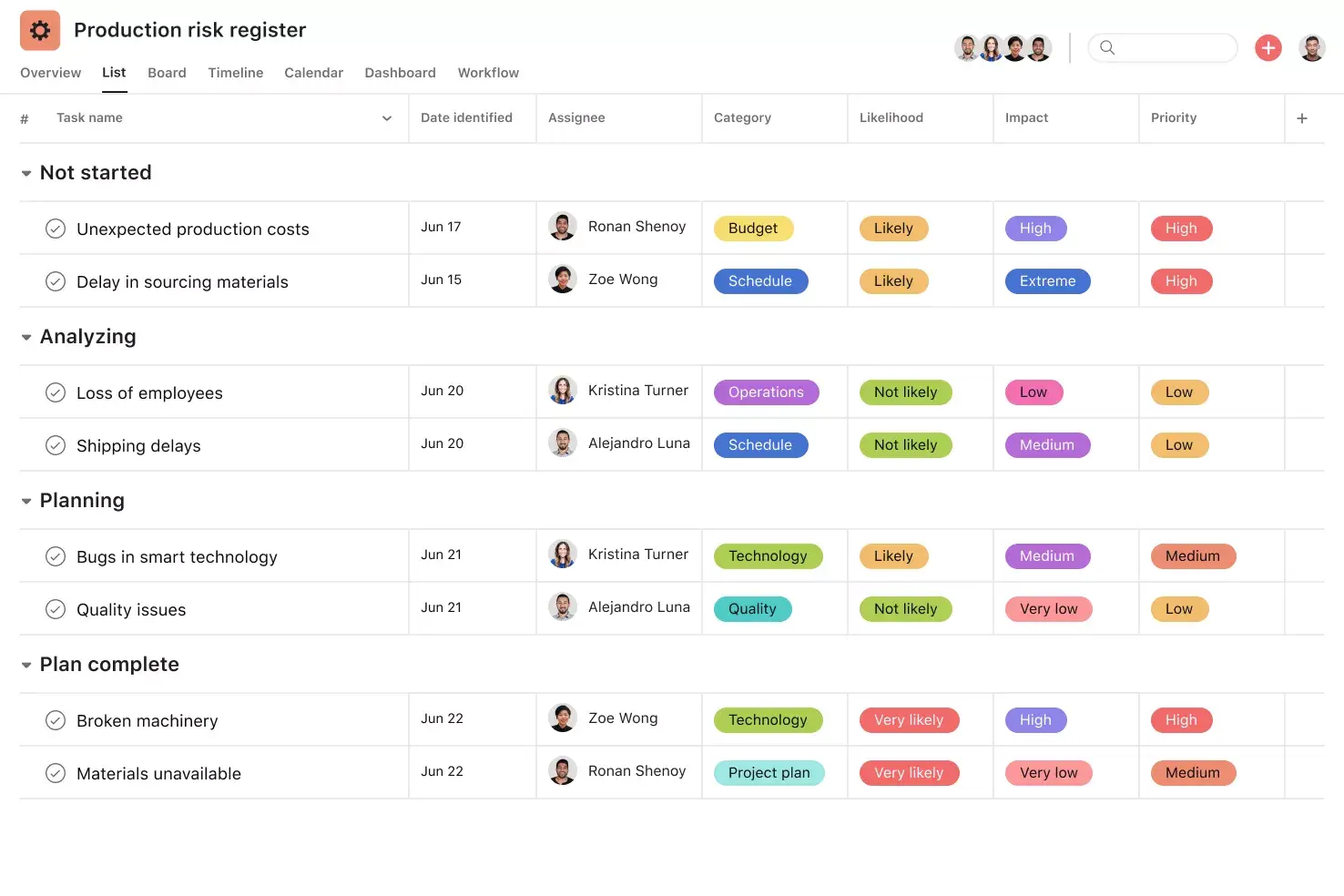
List View. Use List View to see all of your project's information in one place. It works like a to-do list and shows tasks, owners, and due dates at a glance.
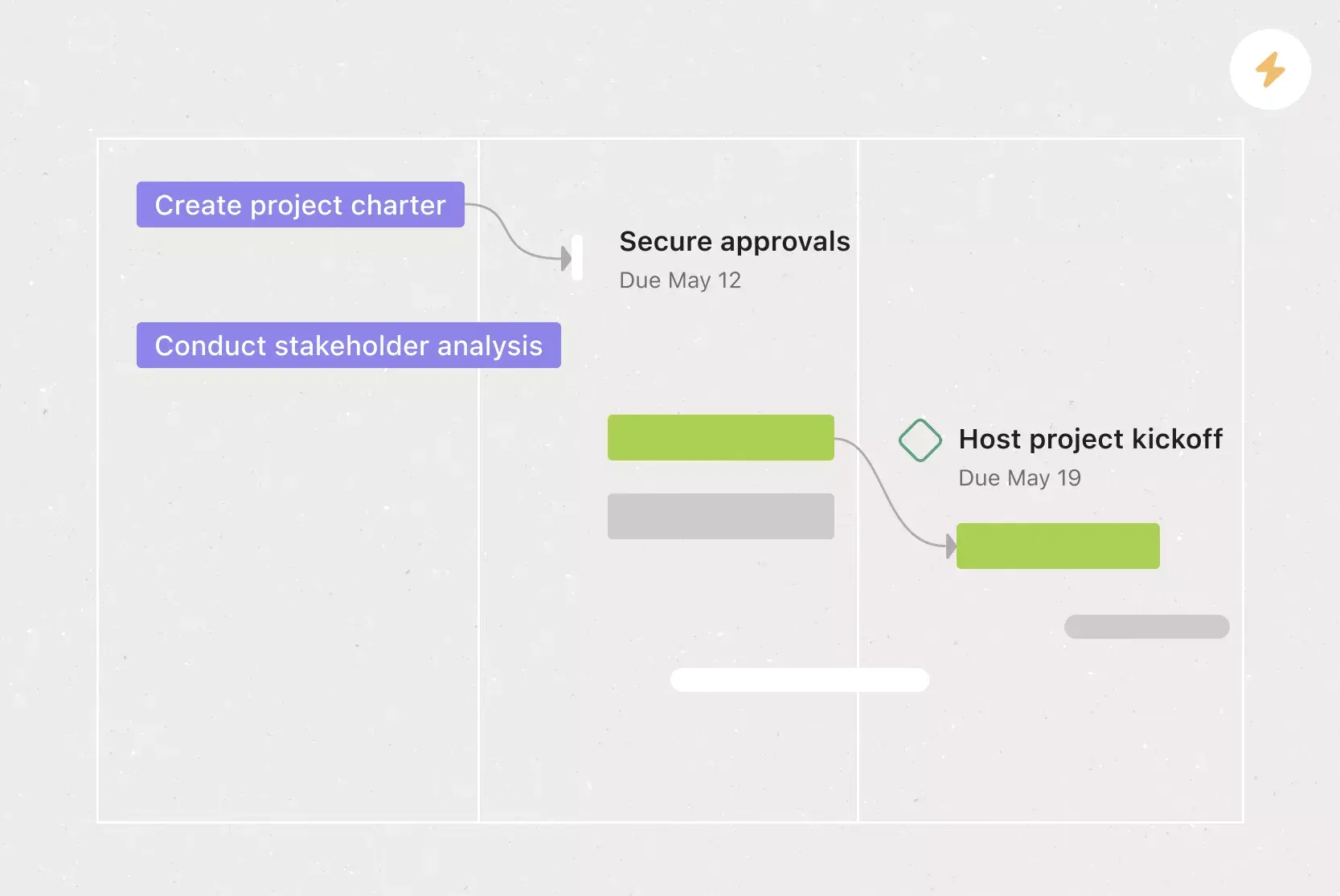
Timeline View. Use Timeline View to map work across time and spot overlaps early. You can also see dependencies so your team can plan around handoffs.
Dashboards. Use Dashboards to review graphs that summarize your project's progress in an executive dashboard. You can quickly spot blockers and adjust before timelines slip.
Portfolios. Use Portfolios to track multiple projects in one view. You can share status updates and keep stakeholders aligned without extra meetings.
Recommended Asana project management apps and integrations
Jira Cloud. Automatically create Asana tasks from Jira issues, and vice versa, or sync issues, tasks, projects, comments, assignees, custom fields, and more.
Google Workplace. Attach files directly to tasks in Asana using the Google Workspace file picker, built into the Asana task pane. Easily attach any My Drive file with just a few clicks.
Figma. Teams use Figma for user flows, wireframes, UI mocks, and prototypes. You can embed Figma files in Asana, so your team can reference the latest designs in context, and live embeds update in real time as the design changes.
OneDrive. Attach files directly to tasks in Asana using the Microsoft OneDrive file chooser, built into the Asana task pane. Easily attach files from Word, PowerPoint, Excel templates, and more.
Start tracking your projects with Asana
A project tracker template provides your team with a repeatable structure, reducing setup time and allowing more focus on advancing work.
Asana makes it simple to create, share, and reuse project tracker templates across your entire organization. With built-in views, automation for repetitive tasks, and integrations, you can move beyond static spreadsheets and give your team a connected way to manage work. Get started and see how Asana helps your team track projects with clarity and confidence.
Create a project tracker templateFAQs about project trackers
What is the best way to keep track of a project?
What should a project tracker include?
How do I create a project tracking template?
Which templates work best for project tracking?
What is the difference between a project tracking template and a project management tool?
Related templates

![[Templates] Cross Functional Project Plan (Card image)](https://assets.asana.biz/transform/60887a05-0b92-49c2-a6e7-f1ace41c5596/TG23-web-thumbnail-041-editorial-resource-management-static-2x?io=transform:fill,width:2560&format=webp)

![[Templates] Event planning (Card image)](https://assets.asana.biz/transform/78e1727d-905a-4ee5-baa6-9dd141f5a3c6/Template_EventPlan_Thumb?io=transform:fill,width:2560&format=webp)
![[Templates] Request tracking workflow template (card image)](https://assets.asana.biz/transform/c871372a-ce51-44f4-b586-0f6da7063706/Template_RequestTrack_Thumb?io=transform:fill,width:2560&format=webp)
Create templates with Asana
Learn how to create a customizable template in Asana. Get started today.